> ## Documentation Index
> Fetch the complete documentation index at: https://bunnynet-cb9733c2-database-cli-docs.mintlify.site/llms.txt
> Use this file to discover all available pages before exploring further.
# Appearance
> Choose between light and dark mode for the bunny.net dashboard.
You can customize the appearance of the bunny.net dashboard by choosing between light and dark mode.
## Change your theme
Navigate to [Account Settings](https://dash.bunny.net/account/settings) in
your dashboard.
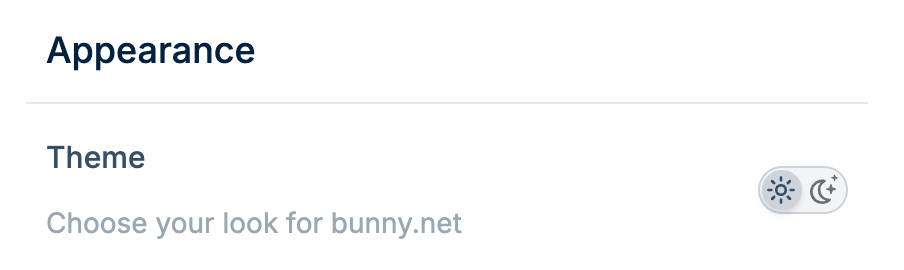
Scroll to the **Appearance** section.
Click the light or dark mode icon to switch themes.
 Your theme preference is saved automatically and applies across all your dashboard sessions.