> ## Documentation Index
> Fetch the complete documentation index at: https://bunnynet-cb9733c2-database-cli-docs.mintlify.site/llms.txt
> Use this file to discover all available pages before exploring further.
# Auth & Access
> Manage database URLs and access tokens for authentication
To connect to your Bunny Database, you'll need your **Database URL** and an **Access Token**. Both can be obtained and managed from the Dashboard or the [Bunny CLI](/cli/quickstart).
## Accessing credentials
Navigate to **Dashboard > Edge Platform > Database > \[Select Database] > Access** to view and manage your database connection details.
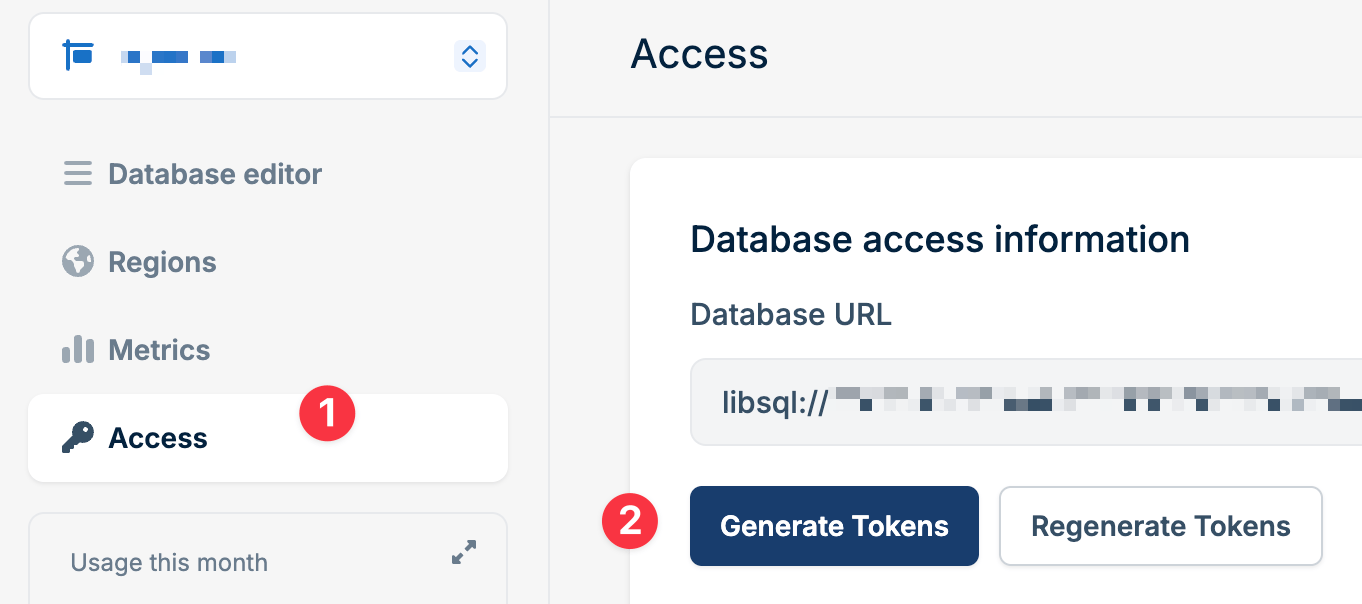 From this page, you can:
* View your Database URL
* Generate new access tokens
* Regenerate all access tokens
* Copy or download existing tokens
## Database URL
Your Database URL is the endpoint used to connect to your database. It follows this format:
```bash theme={null}
libsql://[your-database-id].lite.bunnydb.net
```
This URL is required by all client libraries and SDKs when establishing a connection to your database.
## Access tokens
Access tokens authenticate your requests to the database. Bunny Database provides two types of tokens:
* **Full Access**: Read and write permissions for all database operations
* **Read Only**: Limited to SELECT queries and read operations only
### Generating new tokens
To create a new access token for an additional application while keeping existing tokens valid:
1. Navigate to **Dashboard > Edge Platform > Database > \[Select Database] > Access**
2. Click **Generate Tokens**
3. New full-access and read-only tokens will be created
4. Copy or download your tokens immediately
Tokens are only displayed once. If you lose them, you'll need to generate
another.
Don't have the CLI installed? See the [CLI quickstart](/cli/quickstart) to install and authenticate.
Generate a full-access token for the linked database:
```bash theme={null}
bunny db tokens create
```
Generate a read-only token that expires after 30 days:
```bash theme={null}
bunny db tokens create --read-only --expiry 30d
```
After generation, the CLI offers to save `BUNNY_DATABASE_AUTH_TOKEN` (and `BUNNY_DATABASE_URL` if missing) to your `.env` file. Pass `--no-save` to skip the prompt, or target a specific database by passing its ID:
```bash theme={null}
bunny db tokens create db_01KCHBG8C5KSFGG0VRNFQ7EK7X
```
See [`bunny db`](/cli/commands/db) for the full command reference.
### Regenerating tokens
If your tokens are exposed or compromised, regenerate them to invalidate all existing tokens:
1. Navigate to **Dashboard > Edge Platform > Database > \[Select Database] > Access**
2. Click **Regenerate Tokens**
3. All previous tokens will be immediately invalidated
4. New full-access and read-only tokens will be created
5. Copy or download your new tokens immediately
Regenerating tokens will invalidate **all** existing tokens for all databases.
Update all applications using the old tokens to prevent connection failures.
Invalidate every existing token for the database:
```bash theme={null}
bunny db tokens invalidate
```
This is destructive, so the CLI asks for confirmation first. Use `--force` to skip the prompt in automated environments.
To invalidate the old tokens and immediately create a replacement in one step:
```bash theme={null}
bunny db tokens invalidate --regenerate --save-env
```
`--save-env` writes the replacement token to your `.env` file (requires `--regenerate`).
Invalidating tokens revokes **all** existing tokens for the database.
Update all applications using the old tokens to prevent connection failures.
## Using credentials with client libraries
Pass your Database URL and access token to the client library when creating a connection:
```ts TypeScript highlight={5} theme={null}
import { createClient } from "@libsql/client/web";
const client = createClient({
url: "libsql://[your-database-id].lite.bunnydb.net",
authToken: "your-access-token",
});
```
```rust Rust highlight={5} theme={null}
use libsql::Builder;
let db = Builder::new_remote(
"libsql://[your-database-id].lite.bunnydb.net".to_string(),
"your-access-token".to_string(),
)
.build()
.await?;
```
```go Go highlight={3} theme={null}
import _ "github.com/tursodatabase/libsql-client-go/libsql"
url := "libsql://[your-database-id].lite.bunnydb.net?authToken=your-access-token"
db, err := sql.Open("libsql", url)
```
```csharp .NET highlight={6} theme={null}
using Libsql.Client;
var client = DatabaseClient.Create(opts =>
{
opts.Url = "libsql://[your-database-id].lite.bunnydb.net";
opts.AuthToken = "your-access-token";
});
```
## Using credentials with HTTP API
When making direct HTTP requests to the database API endpoint (`/v2/pipeline`), include your access token as a Bearer token in the Authorization header:
```bash highlight={2} theme={null}
curl -X POST https://[your-database-id].lite.bunnydb.net/v2/pipeline \
-H "Authorization: Bearer your-access-token" \
-H "Content-Type: application/json" \
-d '{
"requests": [
{
"type": "execute",
"stmt": {
"sql": "SELECT * FROM users"
}
}
]
}'
```
## Using credentials with Magic Containers and Edge Scripting
When you add database credentials to a [Magic Container](/database/connect/magic-containers) or [Edge Script](/database/connect/scripting), they are automatically available as environment variables:
* `BUNNY_DATABASE_URL`: Your database URL
* `BUNNY_DATABASE_AUTH_TOKEN`: Your access token
Access them in your code like any other environment variable:
```bash theme={null}
process.env.BUNNY_DATABASE_URL
```
From this page, you can:
* View your Database URL
* Generate new access tokens
* Regenerate all access tokens
* Copy or download existing tokens
## Database URL
Your Database URL is the endpoint used to connect to your database. It follows this format:
```bash theme={null}
libsql://[your-database-id].lite.bunnydb.net
```
This URL is required by all client libraries and SDKs when establishing a connection to your database.
## Access tokens
Access tokens authenticate your requests to the database. Bunny Database provides two types of tokens:
* **Full Access**: Read and write permissions for all database operations
* **Read Only**: Limited to SELECT queries and read operations only
### Generating new tokens
To create a new access token for an additional application while keeping existing tokens valid:
1. Navigate to **Dashboard > Edge Platform > Database > \[Select Database] > Access**
2. Click **Generate Tokens**
3. New full-access and read-only tokens will be created
4. Copy or download your tokens immediately
Tokens are only displayed once. If you lose them, you'll need to generate
another.
Don't have the CLI installed? See the [CLI quickstart](/cli/quickstart) to install and authenticate.
Generate a full-access token for the linked database:
```bash theme={null}
bunny db tokens create
```
Generate a read-only token that expires after 30 days:
```bash theme={null}
bunny db tokens create --read-only --expiry 30d
```
After generation, the CLI offers to save `BUNNY_DATABASE_AUTH_TOKEN` (and `BUNNY_DATABASE_URL` if missing) to your `.env` file. Pass `--no-save` to skip the prompt, or target a specific database by passing its ID:
```bash theme={null}
bunny db tokens create db_01KCHBG8C5KSFGG0VRNFQ7EK7X
```
See [`bunny db`](/cli/commands/db) for the full command reference.
### Regenerating tokens
If your tokens are exposed or compromised, regenerate them to invalidate all existing tokens:
1. Navigate to **Dashboard > Edge Platform > Database > \[Select Database] > Access**
2. Click **Regenerate Tokens**
3. All previous tokens will be immediately invalidated
4. New full-access and read-only tokens will be created
5. Copy or download your new tokens immediately
Regenerating tokens will invalidate **all** existing tokens for all databases.
Update all applications using the old tokens to prevent connection failures.
Invalidate every existing token for the database:
```bash theme={null}
bunny db tokens invalidate
```
This is destructive, so the CLI asks for confirmation first. Use `--force` to skip the prompt in automated environments.
To invalidate the old tokens and immediately create a replacement in one step:
```bash theme={null}
bunny db tokens invalidate --regenerate --save-env
```
`--save-env` writes the replacement token to your `.env` file (requires `--regenerate`).
Invalidating tokens revokes **all** existing tokens for the database.
Update all applications using the old tokens to prevent connection failures.
## Using credentials with client libraries
Pass your Database URL and access token to the client library when creating a connection:
```ts TypeScript highlight={5} theme={null}
import { createClient } from "@libsql/client/web";
const client = createClient({
url: "libsql://[your-database-id].lite.bunnydb.net",
authToken: "your-access-token",
});
```
```rust Rust highlight={5} theme={null}
use libsql::Builder;
let db = Builder::new_remote(
"libsql://[your-database-id].lite.bunnydb.net".to_string(),
"your-access-token".to_string(),
)
.build()
.await?;
```
```go Go highlight={3} theme={null}
import _ "github.com/tursodatabase/libsql-client-go/libsql"
url := "libsql://[your-database-id].lite.bunnydb.net?authToken=your-access-token"
db, err := sql.Open("libsql", url)
```
```csharp .NET highlight={6} theme={null}
using Libsql.Client;
var client = DatabaseClient.Create(opts =>
{
opts.Url = "libsql://[your-database-id].lite.bunnydb.net";
opts.AuthToken = "your-access-token";
});
```
## Using credentials with HTTP API
When making direct HTTP requests to the database API endpoint (`/v2/pipeline`), include your access token as a Bearer token in the Authorization header:
```bash highlight={2} theme={null}
curl -X POST https://[your-database-id].lite.bunnydb.net/v2/pipeline \
-H "Authorization: Bearer your-access-token" \
-H "Content-Type: application/json" \
-d '{
"requests": [
{
"type": "execute",
"stmt": {
"sql": "SELECT * FROM users"
}
}
]
}'
```
## Using credentials with Magic Containers and Edge Scripting
When you add database credentials to a [Magic Container](/database/connect/magic-containers) or [Edge Script](/database/connect/scripting), they are automatically available as environment variables:
* `BUNNY_DATABASE_URL`: Your database URL
* `BUNNY_DATABASE_AUTH_TOKEN`: Your access token
Access them in your code like any other environment variable:
```bash theme={null}
process.env.BUNNY_DATABASE_URL
```